Tech Support Chrome Extension
Auvious Logger helps support teams capture tab video, network activity, and debug details to troubleshoot customer sessions. Users enter a ticket ID, start capture while reproducing the issue, add time‑stamped comments, and upload recordings plus HAR data (and optional console logs) for analysis.
Our logger chrome extension can be found in the Chrome Web store and is compatible with Chromium based browsers such as:
- Google Chrome
- Microsoft Edge
- Brave
- etc.
Download the extension from the official Chrome Web store using the link below: https://chromewebstore.google.com/detail/auvious-logger/mfjfggeagofmanmhjhpkjoloiflnmbak?pli=1
📖 How to Use
1. Request Ticket
- Contact support to get a valid ticket ID for your session
- Each ticket allows limited recording sessions
2. Start Recording
- Navigate to the page you want to record
- Click the extension icon in Chrome toolbar
- Enter your Ticket ID and wait for validation (✓ Valid ticket)
- Open DevTools (F12 or right-click → Inspect)
- Go to Application tab, expand Local Storage and select
- 5.1. auvious.video, if you are capturing logs for the agent.
- 5.2. The website url, if you are capturing logs for widget.
- Double click on the first available empty row in the key column and type
debug - Double click on the Value column to the right and type
auvious*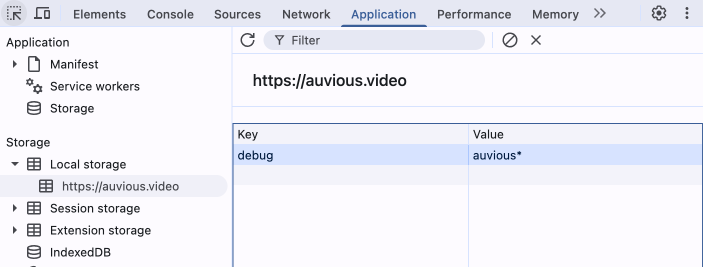
- Go to Network tab → check "Preserve log"
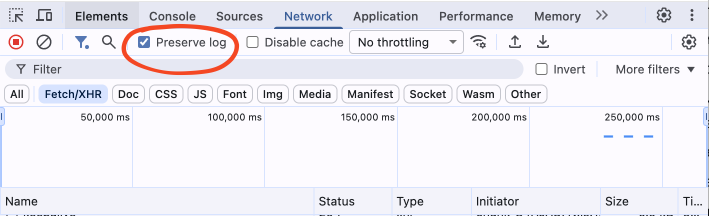
- Refresh your browser page.
- Click "Start Tab Capture" in the extension popup
info
You can repeat this process across multiple tabs. For example, you can run one recording in the Widget tab and another in the Agent tab simultaneously.
3. During Recording
- Add Comments: Use the comment box to describe issues as they happen
- Navigate freely: All tab activity for the current tab and network requests are captured
- Reproduce the issue: Perform the actions that cause the problem
4. Stop Recording
- Click "Stop Capture" when done
- Recording automatically uploads:
- Tab video recording
- Network requests (HAR file)
- Your comments with timestamps
5. Upload Console Logs (Optional)
- After stopping, a dialog appears for console logs
- In DevTools Console tab:
- Right-click in empty space
- Select "Copy console"
- Paste into the dialog text area
- Click "Upload"