Azure BLOB storage
Configure your application to be able to upload recording files to your organizations Azure BLOB Cloud Storage.
Container Name
Azure Blob storage is Microsoft's object storage solution for the cloud. Blob storage is optimized to deal with large amounts of unstructured data, such as audio and video media files.
Storage Account
A container organizes a set of blobs, similar to a directory in a file system. A storage account provides a unique namespace in Azure where your data can be stored. A storage account can include an unlimited number of containers, and a container can store an unlimited number of blobs. For more information see Storage Account Overview .
Permissions and connection requirements
- Use an account-key-based connection string for the broadest compatibility (supports signing SAS).
- The connection string must allow blob read, write, delete, and copy operations on the target container.
- If you use a SAS in the connection string, ensure it includes read/write/delete and signing rights; a restrictive SAS can fail verification.
During verification, Auvious uploads, downloads, copies, deletes a blob, and generates a short-lived SAS URL, so missing permissions will cause test failures.
Troubleshooting
| Error/message | Likely cause | Fix |
|---|---|---|
| AuthenticationFailed / AccountIsDisabled / "not a valid base64" | Bad/expired connection string or disabled account | Replace storageProviderConnectionString with a valid key/SAS; ensure account enabled |
| 403 AuthorizationPermissionMismatch | Missing container/blob permissions or SAS scope too narrow | Regenerate SAS/keys with read/write/delete on the container; confirm storageProviderBucket matches container |
| 404 ContainerNotFound / BlobNotFound | Wrong container name or blob deleted | Correct storageProviderBucket; rerun verification after object exists |
| DNS/UnknownHost | Typo or private endpoint not reachable | Fix account endpoint in connection string; ensure network path to endpoint |
| Copy timeout during verify | Cross-region latency or large blob copy | Increase availability near the storage account; reduce object size used for verification |
For Auvious to be able to access your Azure Storage account your Azure administrator will first need to configure and create a new storage account. For information on creating a new storage account see Create an Azure Storage Account .
Container
From within the new storage account your Azure administrator must now create a new container where your recording data will be stored, as depicted below.
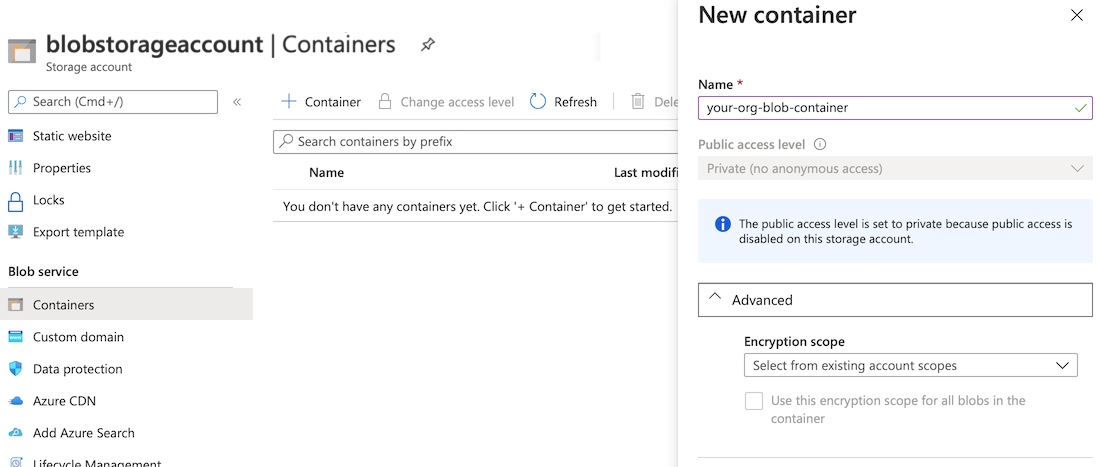
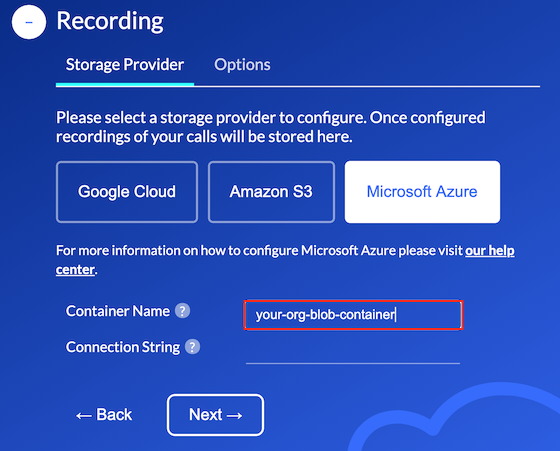
Once your blob container has been successfully created and configured the name of the container must be entered in
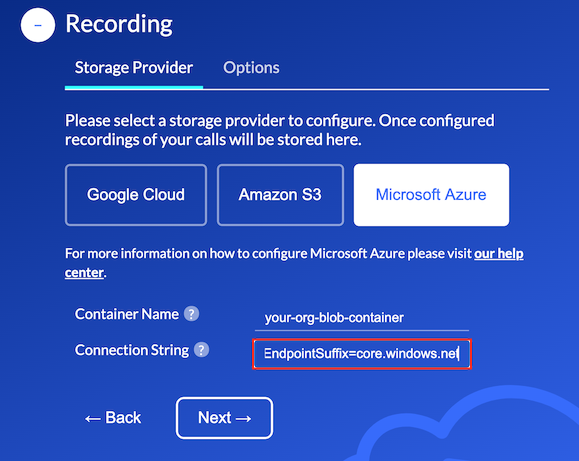
the Container Name property under the Auvious Storage Provider configuration page, as depicted below.
Connection String
The newly created storage account also contains Access Keys. These access keys are used to authenticate applications when making requests to this Azure storage account.
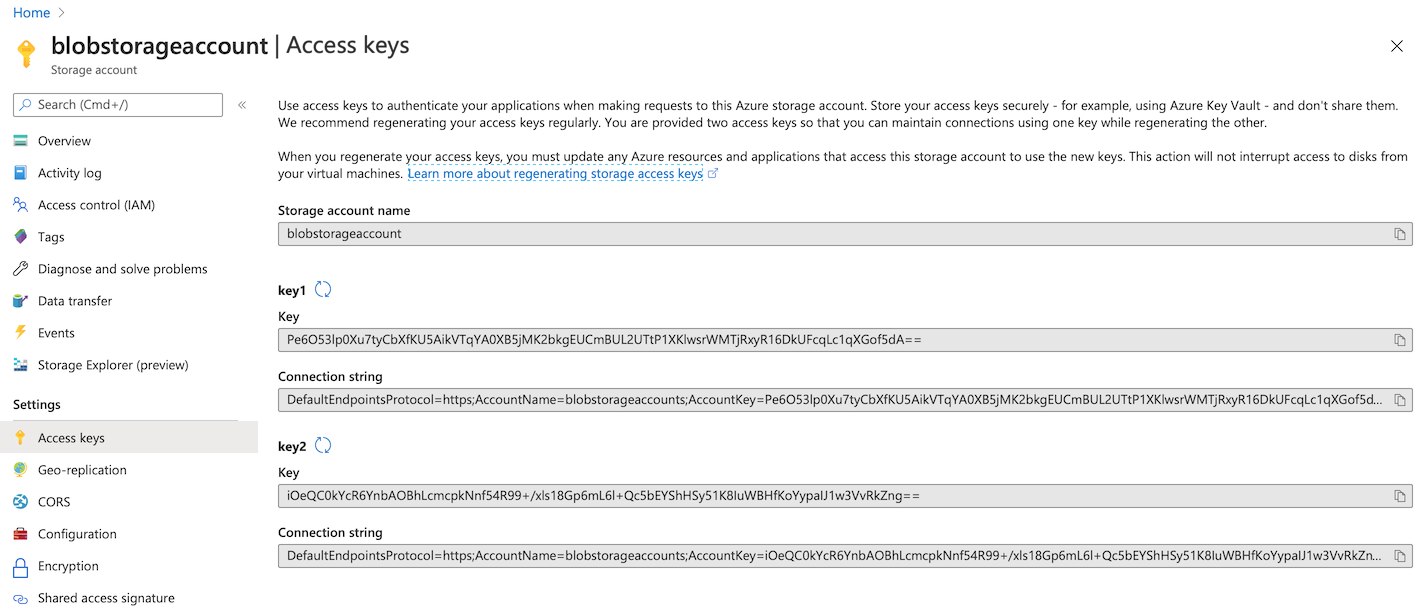
As depicted above each Access Key contains a Connection String. The Connection String includes the authorization information required for your application to access data in an Azure Storage account at runtime using Shared Key authorization.
For help on how to view your account's access keys and copy a connection string, see Manage storage account access keys .
For Auvious to remotely access you Azure storage account your Azure administrator will need to copy a ** Connection String** specifically for this purpose.
Please enter the relevant Connection String property under the Auvious Storage Provider configuration page, as depicted below.
Review & Test
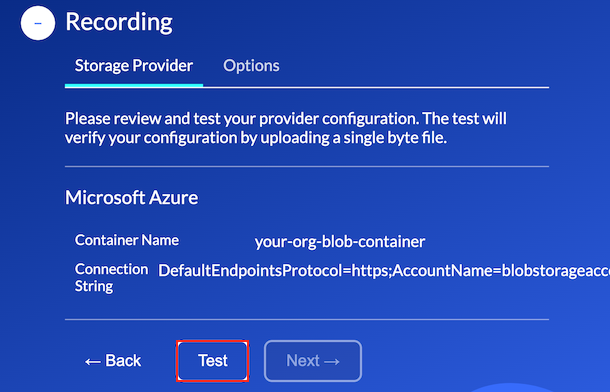
In the final step you can review and go back to make any necessary corrections.
When you are ready, you can test your configuration to ensure that Auvious can successfully access your storage provider.